

Overview
The Lehr-Lern-Szenario (LLS) is a virtual reality (VR) meeting application. With a Meta Quest Head-mounted display (HMD) and the LLS application, users are able to embody their personal virtual avatars (a 3D mesh of a real world person scanned in the HyLeC-Scanner) and meet in an immersive space being a virtual auditorium. While one user has the presenter role, having control over slide decks (which are made with the Decker tool) to be shown in VR, other users take the listener roles, following the slide presentation while being positionally restricted to one of the 36 seats in the virtual room. The number of listeners which are enabled to enter one VR-Room is restricted to the number of seats available.
The initial basis for LLS originates from a group project at TU Dortmund in 2023/2024 named AvaTalk. AvaTalk is a tool for future teachers/presenters for practicing talks/lectures/speaking in general in front of students, while not necessarily needing to leave their homes. Furthermore, it is a proof of concept with regard to the technologies used and its distributed architecture. LLS emerged through the revision and extension of the code base of AvaTalk.
LLS mainly consists of two components: The so-called Lehr-Lern-Szenario Management Server (LLS-MS) as well as multiple LLS-VR-Clients, which functionality is described here.
One person needs to setup the LLS-MS in order to create LLS-VR-Servers, which are the VR-Rooms with respective access codes. Every LLS-VR-Server allows one presenter to join and 36 listeners.
First of all, one has to ensure that the LLS-MS has been set up correctly (see the documentation) in order to create LLS-VR-Servers. A person can request the LLS-MS to create a LLS-VR-Server; this is possible via a dedicated website (<address>/room/create, the <address> depends on how LLS-MS is hosted) as well as via the LLS-VR-Client. If a LLS-VR-Server was created successfully, the LLS-MS offers its information (the name of the respective VR-Room, and the two access codes (one for the presenter and one for listeners). See Workflow Visualization (short: WV) 1:

The person that created the room (which is most likely the presenter) is then supposed to share the room's name and, e.g., the listeners' code to the users which are supposed to join the LLS-VR-Server (and therefore, the VR-Room so the virtual auditorium instance) as listeners.
Every user aiming to join a LLS-VR-Server (no matter whether a presenter or a listener) needs a Meta Quest HMD with the LLS-VR-Client application (the Unity project described here), the room's name (all rooms are listed withing the LLS-VR-Client application), a presenter or listener access code, and optionally a personal virtual avatar (which needs to be uploaded beforehand via a dedicated website (<address>/avatar/create, <address> depends on how LLS-MS is hosted). See WV 2 and 3:
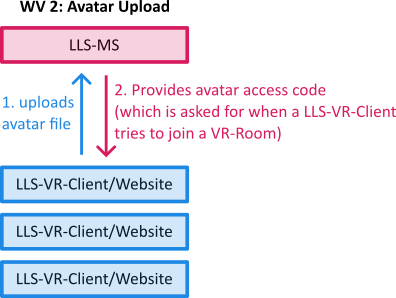

The avatars of the fellow users, joining the same room, are then fetched by the LLS-VR-Client from the LLS-MS.

When trying to join a LLS-VR-Server, the respective server checks if a seat or presenter spot is still available and automatically assignes the user's role depending on the code the user typed in.
The LLS-VR-Client app is built with Unity 6 and makes use of Unity RPC, Unity Avatar System, Unity VR, UniVoice, Final IK and Meta XR.
UniVoice provides a voice chat feature which allows users to communicate within the application. The Meta XR system is a bridge and integration framework to utilize the Meta VR Headsets. It also enables head and hand tracking for all users - meaning that a users' HMD and controller positions are being transferred to the head and hands of the respective avatar. While Meta XR provides three-point tracking (meaning that only the position and rotation of the head and hands are given), Final IK uses those three points to find a full-body pose, adjusting the rest of the virtual avatar within the available degrees of freedom to make the posture look as natural as possible.
Running the LLS application
To launch the LLS-VR-Client application one can either run the prebuilt windows/meta vr build or build it locally if Unity 6 as well as the respective unity build addons are installed.
Launching the prebuilt executable
The prebuilt executable can be found on the release page. To transfer the MetaVR build onto a Meta HMD, one needs to follow these steps:
- Setting up the Meta Quest Headset with a Meta Quest account.
- Installing Meta Quest Developer Hub on the respective computer.
- Enabling "Developer Mode" and connecting the Headset to MQDH, as described here.
- Sideloading the executable using MQDH by dragging the .apk file into MQDH.
Building it locally
Building it locally requires following prerequisites:
- Installing the Unity Hub
- Either downloading git (and enabling git lfs) or just downloading the zip of the repository.
- In the Unity Hub, clicking on Add+ -> Add project from disk and choosing the directory where the content of this repository is located.
- Once prompted, installing the requested Unity 6 version of this project and adding the following modules:
- Android Build Support (OpenJDK and Android SDK)
- Linux Dedicated Server Build Support
- Windows Build Support (optional; only required if testing the client on Windows is aimed)
- Windows Dedicated Server Build Support (optional; only required if testing the server on Windows is intended, or if launching the server on Windows instead of Linux is intended)
- Opening the project in the Unity Hub; when prompted installing all required plugins and waiting for the Packages to install.
- After that Unity should show the loaded project. There should be a HyLeC tab in the window control bar. In the HyLeC tab there are all the supported build configurations and their direct launch commands.

Attention: Building for the respective platforms (MetaXR and Windows) requires additional software with their own licensing to be installed. Most of the issues that may arise along the way are probably independent of the project; a look at the Assets/Editor/BuildMenu may give some hints were the issue originates from.
Naming, Structure and Technical Details
This project includes three main parts.
The primary component is the LLS-VR-Client which contains most of the functionality and the rendering capabilities.
The second major part is the server for that client (LLS-VR-Server which encapsulates the VR-Room) which enables data transfer of the character animations, user voice and current presentation state.
Another external component called management server (LLS-MS) handles LLS-VR-Server instance creation and avatar data distribution. This component is technological independent of Unity and has its own repository and Wiki with more details about the implementation and how to use it.
As mentioned above, this application consists of two parts (being the LLS-VR-Client and LLS-VR-Server) as it is a multi user application utilizing Unity RPC. The Unity RPC documentation provides more information on how annotations are used to define the server behavior There is no special directory or repository for the server portion of this project, even though it is important and handled as a distinct entity.
Additionally, there is one more part in this project, which allows for a smoother deployment. Please see the wiki of the LLS-MS application for more information. It can be neglected if only a single instance deployment is considered, but even then it is helpful because it handles the avatar distribution.
The main source directory is located at Assets/HyLeC. A good starting point to familiarize oneself with the application is to have a look at the three scenes located at Assets/HyLeC/Scenes. The Bootstrap scene does not contain user facing assets but encompasses all aspects needed for the technical initializations like RPC, VR, Head- and Handtracking as well as overarching application management.
This scene is always loaded in addition to the main user facing scene. The MainMenu scene is the first scene the user enters when running the application. It contains the 3D VR menu that provides the options to create a room, join a room and choose an avatar.
Joining a room leads to the Audimax scene which contains a large virtual auditorium (modeled after the actual TU Dortmund Audimax) where presenter and listeners are able to see the slide deck, can interact and communicate. This scene is handled as a multiuser scene by Unity; the virtual avatars as well as the state of the slide deck are synchronized across all connected clients.
The presentation is a webpage rendered in the virtual environment showing Decker slides. Regarding the presentation, only the current URL (so the current page of the slide deck) is synchronized - meaning that other aspects like the state of animations or videos are not being synchronized across the users.
Conclusively, the main features of this application are as follows:
- Allowing users to launch this application in a VR mode and move their view via head movement.
- Being able to load, instantiate and animate the virtual avatar of a user.
- Linking the avatar animation to information gathered by the VR peripherals (like head and hand movement and extrapolated body position, as well as foot placement and leg bending)
- Keeping avatar animation synchronized with a gathering of users, limited to an instance/room.
- Distinguishing participants in two roles: one presenter and multiple listeners.
- Allowing the presenter to control a shared (synchronized via the URL) view of a webpage.
- Rendering webpage content to all participants.
- Allowing users to create a new room instance by providing a room name and a collection of initial URLs which can be accessed in the room.
- Presenting the user with two codes to either join as presenter or listener (see LLS-MS documentation for more information).
- Allowing the user to enter their avatar code they got after uploading their avatar, so they can use it as their personal avatar representation in the room.
- Prompting the presenter to accept or reject new listeners trying to join the room.
- Providing the presenter with the possibility to mute and remove listeners.