

User Manual
Preparation
Before starting the application, a personal avatar can be uploaded or a room can be created.
Uploading an avatar:
- Navigate to the avatar upload page at <address>/avatar/create using a web browser. The <address> depends on how LLS is hosted
- You will receive a personal avatar identification number that can be entered in the "Raum Betreten"-menu (described later)
Creating a room:
- Navigate to the room creation page at <address>/room/create using a web browser. The <address> depends on how LLS is hosted
- Enter a room name and links to all the Decker slide-decks that are used during the presentation
- You will receive two room passwords: one for listeners and one for the presenter. When joining this room, the entered password decides the role
After starting the application, you are placed in the main menu environment. In front of you should be two panels. The left one presents you with a tutorial. Take a moment to make yourself familiar with the controls and your VR device. Then, calibrate the avatar and join a room.
Calibration controls (in the main menu):
- Stand up with the arms extended to the sides and press the right grip button
- Sit down with the hands on a table and press the left grip button
Basic controls (in the presentation room):
- Listeners can change their seats with the left trigger
- The presenter can switch the slides forwards and backwards using the A/B buttons on the right controller (hold to select and release to confirm)
- The presenter can mute listeners using the left grip button (hold to select and release to confirm)
- The presenter can kick listeners using the right grip button (hold to select and release to confirm)
Walkthrough for listeners
In the center, you find the main control panel to either join ("Raum Betreten") or create ("Raum Erstellen") an existing room.

Pressing "Raum Betreten" opens a list in which you should find the room you were asked to join. Select the room in the list and then click on "Weiter".

After you chose one, you are getting asked for the access code for the room ("Zugangsdaten") the presenter should haven given to you beforehand. Furthermore, you should enter your name ("Dein Name") and your avatar ID ("Avatar-ID") which you got after uploading the avatar.

Pressing "Beitreten" leads you to the room - the main auditorium. All except the first two rows of seats have been removed to simplify the scene. The image has reduced lighting fidelity.

Here, you can choose a seat and enjoy the presentation. Your talking is being transferred to other users inside your room, and your head as well as hand movements are being synchronized. But attention: if you are too loud or even disturb the presentation you might get muted or even kicked by the presenter ;)
Walkthrough for presenter

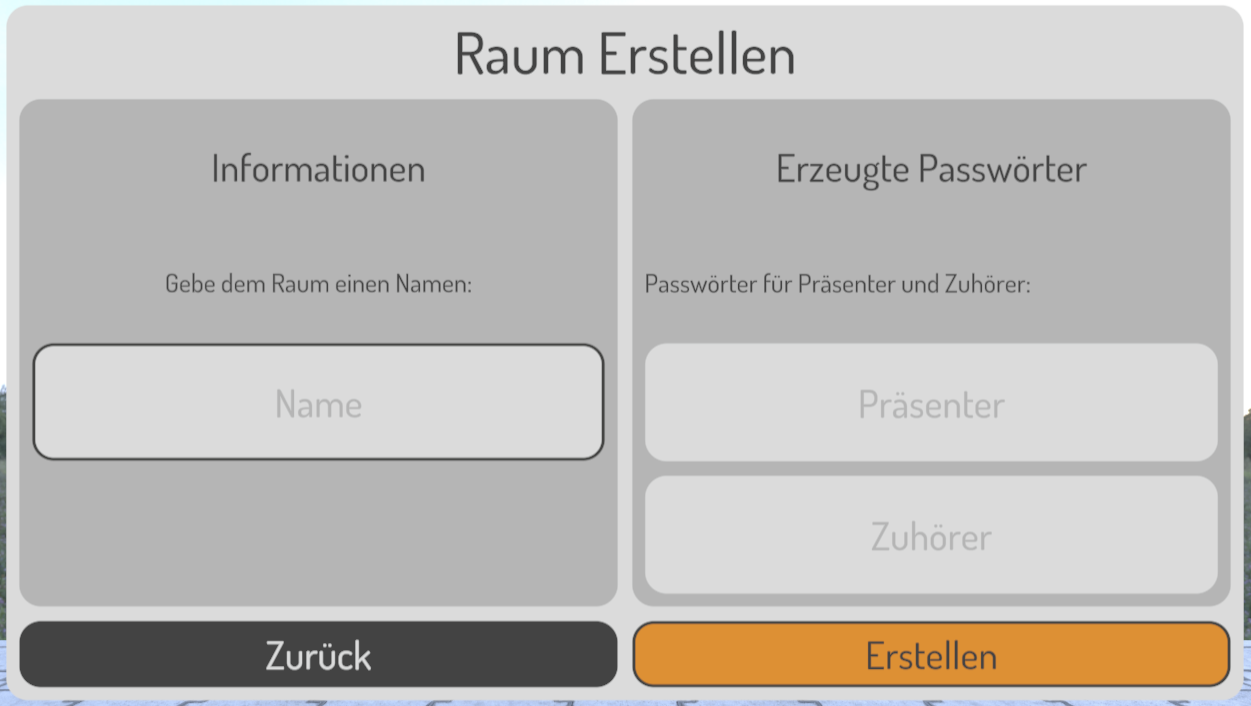
If you are a presenter then you can create a room with the button "Raum Erstellen" in the VR main menu. You can also do so on the webpage if you have longer URLs which might be more convenient to enter via a desktop or mobile device instead of a VR keyboard.

Then you can enter the room name. Once you created a room the access codes for the presenter (being you) and listeners are generated which you should write down and provide to your audience. Only provide the listener code, because anybody who obtains the presenter code may pose as such.
Then you can join the room using the presenter code from the previous step. The presentation room contains one main console, which allows you to see the current webpage presented behind you and the other main URLs you provided at creation. Additionally, you have two buttons (right A/B, see controls section above) that allow you to go forwards and backwards just as in many presentation tools like Decker.


Note that the images are from the debug build with reduced lighting fidelity. The webpages are used for demonstration purposes.